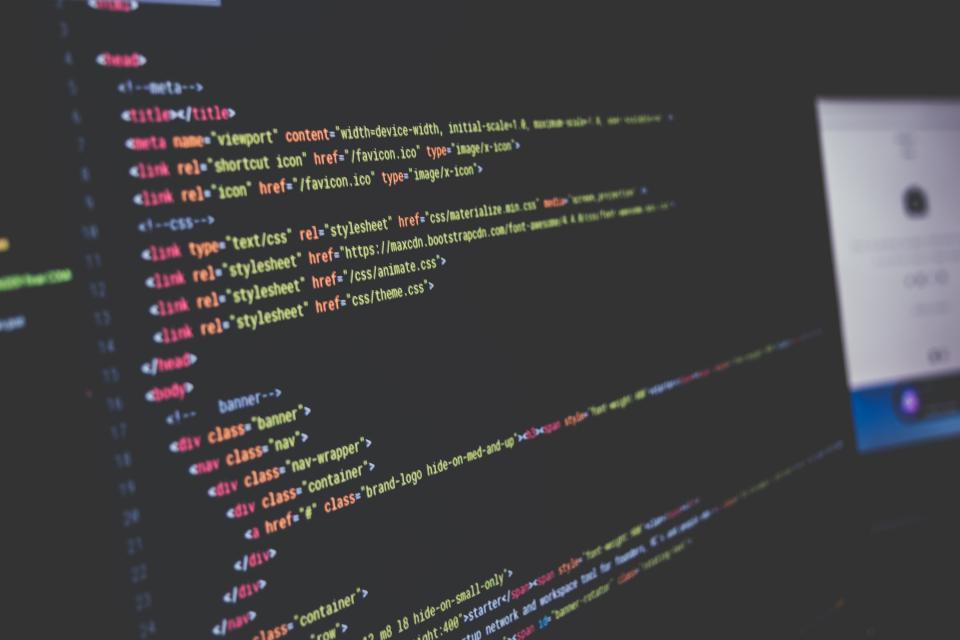
Every web page you have ever opened – a train booking site, a news article, an online shop – is built on HTML. Before you learn colours, layouts or interactivity, you need to understand this foundation. This lesson answers the question “what is HTML?”, shows how a browser turns it into a page, and explains what the skeleton of every HTML document looks like.
What is HTML?
HTML stands for HyperText Markup Language. It is the language used to describe the structure and meaning of content on the web. With HTML you tell the browser things like “this is the main heading”, “this is a paragraph”, “this is a list of steps” or “this text is a link to another page”.
HTML is a markup language, not a programming language. It has no loops, no maths and no decisions. Instead, you wrap pieces of content in tags that label what each piece is. The word “HyperText” refers to text that contains links to other text – the idea that made the web a web.
HTML is maintained as a “living standard” by the WHATWG (Web Hypertext Application Technology Working Group). There is no “HTML 6” waiting around the corner: the standard is updated continuously, and browsers add support for new features as they are agreed. When people say “HTML5” today, they simply mean modern HTML.
HTML, CSS and JavaScript
Web pages are usually made of three languages that work together. A simple way to remember their roles is to think of building a house:
| Language | Job | House analogy |
|---|---|---|
| HTML | Structure and meaning of the content | Walls, rooms and doors |
| CSS | Presentation: colours, fonts, spacing, layout | Paint, tiles and furniture |
| JavaScript | Behaviour and interactivity | Wiring – lights and switches |
Keeping these jobs separate is a good habit. HTML should describe what something is, not how it looks. A heading is marked as a heading because it is a heading, not because you want big bold text. The look is the job of CSS, which you will learn in the CSS Introduction lesson, and behaviour belongs to JavaScript, covered from JavaScript Introduction onwards.
How a browser reads HTML
When you visit a page, the browser downloads an HTML file – plain text – from a server. It then parses the text: it reads the tags from top to bottom and builds a tree of objects in memory called the DOM (Document Object Model). Finally it draws that tree on the screen, applying any CSS it finds.
Browsers are very forgiving. If you forget to close a tag, the browser will usually guess what you meant and still show something. That sounds helpful, but it means mistakes can hide quietly, and a wrong guess can produce odd layouts later. Always aim to write correct, tidy HTML rather than relying on the browser to fix it.
The structure of an HTML document
Every HTML page follows the same basic skeleton. Here is a complete, minimal page. Press Try it Yourself, change the text, and run it again to see your change.
<!DOCTYPE html>
<html lang="en">
<head>
  <meta charset="utf-8">
  <meta name="viewport" content="width=device-width, initial-scale=1">
  <title>My first page</title>
</head>
<body>
  <h1>Vanakkam from Pondicherry!</h1>
  <p>This is my very first web page.</p>
  <p>I am learning HTML, one lesson at a time.</p>
</body>
</html>
Let us go through it line by line:
<!DOCTYPE html>tells the browser to use modern standards mode. Without it, browsers fall back to an old “quirks mode” that behaves differently.<html lang="en">is the root element that wraps the whole page. Thelangattribute states the language of the content, which helps screen readers pronounce words correctly and helps search engines.<head>holds information about the page: the character encoding, the viewport setting for mobile screens, and the<title>shown in the browser tab. Nothing in the head appears in the page itself.<body>holds everything the visitor actually sees: headings, paragraphs, images, links and so on.
Tip: The line <meta charset="utf-8"> makes sure characters such as ₹, é or தமிழ் display correctly. Put it near the very top of the head on every page.
Tags and elements in brief
Most HTML is written with a pair of tags: an opening tag such as <p> and a closing tag such as </p>. The opening tag, the content and the closing tag together form an element. Elements can sit inside other elements, which is called nesting. In the example below, the list items are nested inside a list, and the list sits inside the body.
<!DOCTYPE html>
<html lang="en">
<head>
  <meta charset="utf-8">
  <meta name="viewport" content="width=device-width, initial-scale=1">
  <title>Nesting example</title>
</head>
<body>
  <h1>Weekend plan</h1>
  <p>Places to visit in <strong>Chennai</strong> this weekend:</p>
  <ul>
    <li>Marina Beach</li>
    <li>Government Museum</li>
    <li>Semmozhi Poonga</li>
  </ul>
</body>
</html>
Notice that the <strong> element is completely inside the paragraph. Elements must close in the reverse order they were opened, like boxes packed inside boxes. You will learn the rules properly in HTML Elements and Attributes.
Why semantic HTML matters
Choosing the element that matches the meaning of your content is called writing semantic HTML. It is worth the effort for three reasons:
- Accessibility: screen readers use headings, lists and landmarks to let blind and low-vision users jump around a page quickly.
- Search engines: clear structure helps search engines understand what your page is about.
- Maintenance: meaningful markup is easier for you and your team to read and style later.
Watch out: A common beginner mistake is picking elements for their default look – for example using a heading tag just to make text big. Pick elements for meaning; change the look with CSS.
What you need to start
You do not need to install anything special to write HTML. A plain text editor and a web browser are enough, and you already have both. In the next lesson, HTML Editors and Your First Page, you will set up a free code editor, save a real .html file on your computer and open it in a browser.